

Synido Gaming A7 - FAQs
Find the product using solutions here
If you have any other questions, you can contact us to get technical support help from our engineer
Contact email: cs@synido.com
#I. Core Audio Modes (Three Mutually Exclusive Modes)
1. Music Mode
Function: Enables high-resolution audio output for music playback, supporting sampling rates of up to 24-bit / 192 kHz to preserve audio details and deliver high-fidelity sound.
LED Indicator: When enabled, the corresponding button's green LED stays solid. The LED turns off when switching to Game Mode or AI 7.1 Mode.
How to Use: Press the Music Mode button once to activate this mode. To exit, switch to Game Mode or AI 7.1 Mode.
2. Game Mode
Function: Optimized for gaming scenarios, with audio output at 16-bit / 48 kHz. Enhances the audibility and recognition of in-game sounds, such as footsteps and gunshots.
LED Indicator: When enabled, the corresponding button's green LED stays solid. The LED turns off when switching to Music Mode or AI 7.1 Mode.
How to Use: Press the Game Mode button once to activate this mode. To exit, switch to Music Mode or AI 7.1 Mode.
3. AI 3D Spatial Audio 7.1 (AI 7.1 Mode)
Function: Uses a virtual 7.1-channel audio processing algorithm to create immersive 3D surround sound, enhancing the sense of immersion in games and movies.
LED Indicator: When enabled, the corresponding button's green LED stays solid. The LED turns off when switching to Music Mode or Game Mode.
How to Use: Press the AI 7.1 button once to activate this mode. To exit, switch to Music Mode or Game Mode.
Note: These three modes are mutually exclusive. Only one mode can be active at a time.
How to Use: Press the Music Mode button once to activate this mode. To exit, switch to Game Mode or AI 7.1 Mode.
# II. Audio Enhancement Features
1. Footstep Enhancement
Function: Enhances footsteps and ambient sounds in games, helping users identify enemy positions more accurately.
LED Indicator: The corresponding LED stays solid when the feature is enabled and turns off when disabled.
How to Use:
Press once to enable Footstep Enhancement. The LED stays solid.
Press again to disable it. The LED turns off.
Additional Note: The actual enhancement levels and performance are subject to the final device tuning parameters.
2. AI Noise Reduction
Function: Applies AI-powered noise reduction to microphone input, filtering out ambient background noise to improve voice clarity during calls and live streaming.
LED Indicator: The corresponding LED stays solid when the feature is enabled and turns off when disabled.
How to Use: Press the AI Noise Reduction button once to enable the feature. Press it again to disable it.
#III. Microphone Functions
1. Microphone Volume Adjustment
Function: Provides stepless adjustment of the microphone input volume, with 0–100 levels of fine control to accommodate different usage scenarios.
LED Indicator: The 15 white LEDs surrounding the control dial indicate the current volume level. More LEDs illuminate as the volume increases:
At level 0, all LEDs are off.
At level 100, all LEDs are illuminated.
The LEDs progress from left (minimum volume) to right (maximum volume).
How to Use: Rotate the microphone volume dial clockwise to increase the volume or counterclockwise to decrease it.
2. Microphone Mute
Function: Instantly mutes the microphone input with one press, preventing ambient sounds or private conversations from being picked up.
LED Indicator: When the microphone is muted, all 15 white LEDs surrounding the dial flash. After unmuting, the LEDs return to the display corresponding to the current microphone volume level.
How to Use: Press the Microphone Mute button once to mute the microphone. Press it again to unmute.
#IV. Monitoring Functions
1. Headphone Monitoring Volume Adjustment
Function: Provides stepless adjustment of the headphone output volume, with 0–100 levels of fine control to accommodate different monitoring devices and listening preferences.
LED Indicator: The 15 white LEDs surrounding the control dial indicate the current volume level. More LEDs illuminate as the volume increases:
At level 0, all LEDs are off.
At level 100, all LEDs are illuminated.
The LEDs progress from left (minimum volume) to right (maximum volume).
How to Use: Rotate the headphone monitoring volume dial clockwise to increase the volume or counterclockwise to decrease it.
2. Headphone Monitoring Mute
Function: Instantly mutes the headphone monitoring output with one press, preventing audio from being played through the headphones and disturbing others.
LED Indicator: When monitoring is muted, all 15 white LEDs surrounding the dial flash. After unmuting, the LEDs return to the display corresponding to the current volume level.
How to Use: Press the Monitoring Mute button once to mute the headphone output. Press it again to unmute.
#V. Factory Reset
Function: Restores all device settings to their factory defaults, helping resolve abnormal settings or unexpected feature behavior.
LED Indicator: During the reset process, the LEDs of the five function buttons on the top panel flash three times in succession. Once the process is complete, the device restarts and returns to its default settings.
How to Use: Press and hold the Music Mode and Game Mode buttons simultaneously for 3 seconds to initiate a factory reset.
Reference Factory Default Settings:
AI 7.1: Enabled
Footstep Enhancement: Enabled
AI Noise Reduction: Enabled
Microphone volume and headphone monitoring volume: Both set to the 12 o'clock position.
Note: The final factory default settings are subject to the device's final tuning and configuration.
#VI. Connecting to the Desktop Software
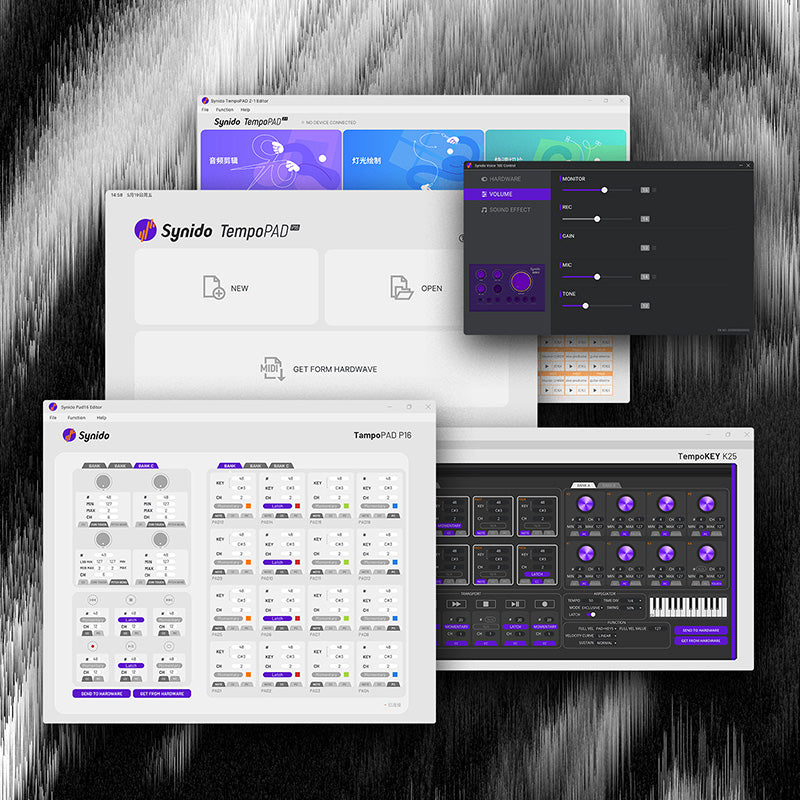
Download the latest version of the Gaming A7 desktop software from the official Synido website to unlock advanced audio controls.
The software allows you to adjust the overall audio settings of the sound card. It also provides preset music and gaming sound profiles, along with customizable audio settings.
1. Equalizer (EQ) Interface
Opening the Equalizer:
The EQ interface offers three sections: Music, Game, and Custom.
Music Presets: Includes specially designed EQ profiles optimized for different music genres.
Game Presets: Includes EQ profiles optimized for different gaming scenarios and sound characteristics. Users can select a preset according to their preferences and further fine-tune its settings.
Saving Custom Profiles: After adjusting an EQ profile, click Save as Custom in the upper-right corner to save the current settings to the Custom section.
Custom EQ: The Custom section uses a flat EQ curve by default. Users can adjust the EQ according to their preferences and click Save as Custom in the upper-right corner to save their settings.
2. EQ Adjustment Guide
Gain: Drag the control up or down to adjust the volume level of the selected frequency band.
Frequency: Move the control left or right to select the center frequency to be adjusted.
Q Value: Adjusts the bandwidth of the selected frequency band.
A lower Q value produces a wider bandwidth, resulting in a smoother, broader adjustment.
A higher Q value produces a narrower bandwidth, allowing for more precise frequency adjustments.
Filter Type: Select the desired filter type. The Peak (Peaking) Filter is recommended for general EQ adjustments.
The EQ provides 8 adjustable frequency bands, allowing users to select and fine-tune each frequency point independently. The Peak (Peaking) Filter is selected by default.
3. Spatial Audio
This section allows users to switch between the sound card's operating modes:
Music Mode
AI FPS 7.1 (Game Mode)
AI 7.1 Mode
When switching between modes, the sound card will restart its audio connection. The connection status displayed in the lower-left corner of the software will update accordingly.
When the status displays Device Connected, the sound card is successfully connected.
You can also click the audio icon in the lower-right corner of your computer desktop to check whether Synido is selected as the current audio output/input device.
4. AI FPS 7.1 (Game Mode)
In AI 7.1 Mode, the desktop software allows users to adjust 8 virtual audio channels, each corresponding to a different spatial direction.
Users can fine-tune the levels of these channels according to their listening preferences and gaming needs. Click Restore Default Settings in the upper-right corner to restore the default configuration.
5. Device Settings
The Device Settings section includes the following options:
① Volume Settings
Allows users to adjust:
Computer system volume
Sound card microphone volume
Sound card headphone monitoring volume
② FPS Settings
Footstep Volume: Enables or disables Footstep Enhancement and allows users to adjust its enhancement intensity.
Gunshot Volume: Controls Gunshot Suppression and allows users to adjust the suppression intensity.
③ Function Settings
Sidetone: Enables or disables microphone sidetone (mic monitoring).
AI Noise Reduction: Enables or disables AI noise reduction and allows users to adjust the noise reduction intensity applied to microphone audio.
Slide the corresponding control to the right to enable the feature.
④ Other Settings
Language: Switch between Chinese and English.
Startup Settings: Choose whether the software launches automatically when the computer starts.
Factory Reset: Restore the sound card to its factory default settings with one click.
Firmware Upgrade: View the current firmware version and check whether an update is available.
Learn More: Click to visit the official Synido website for additional product information.
6. Gaming Audio Demonstration
① Audio Comparison
Compare the original game audio with Game Mode enabled and with Footstep Enhancement enabled to hear the differences between the three audio configurations.
② Preset Gaming Audio Demonstrations
Listen to the preset gaming audio effects to experience the sound processing and enhancements provided by the Gaming A7.
#VII. Audio Port Usage Rules
The following table explains the input and output functions of each audio port and how they work when multiple ports are connected simultaneously.
#VIII. Troubleshooting
1. Hearing Electrical Noise or Static During Use
Check whether the headphone cable is damaged.
Check whether the headphone plug is securely connected and making proper contact.
2. Low Microphone Volume or No Microphone Audio During Voice Calls
Try adjusting the distance between the microphone and your mouth.
Check whether the microphone is damaged.
Check whether the microphone input volume is set too low.
Make sure the microphone has not been muted or disabled.
Check whether the microphone is connected to the correct port.
Make sure the microphone monitoring (sidetone) function is enabled in the desktop software, if required.
3. No Sound Through the Headphones
Check whether the headphone plug is fully inserted into the headphone jack.
Check whether headphone monitoring is muted.
Rotate the monitoring volume dial to increase the headphone volume.
Try using a different pair of headphones to determine whether the issue is related to the headphones.
4. No Sound When Connected to a PC
Check whether the USB Type-C cable is properly connected to both the device and the computer.
Check whether the computer recognizes the audio device (SY102 Music).
Disconnect and reconnect the USB Type-C cable.
If the issue persists, uninstall and reinstall the computer's audio driver, then reconnect the device:
①Right-click This PC on your computer.
②Select Manage.
③Select Device Manager.
④Find SY102.
⑤Right-click SY102 and select Uninstall device.
#IX. Using a Gaming Audio Interface with a Gaming Headset: Can Double EQ Processing Cause Problems?
The Gaming A7 already features EQ optimization designed for gaming. Will using it together with a gaming headset that has its own EQ adjustments cause any issues?
Yes. Enabling EQ processing on both the gaming audio interface and the gaming headset may result in excessive or conflicting audio processing. This is commonly referred to as double EQ processing.
The following issues may occur:
1. Excessive Frequency Boosting: Harsh, Muffled, or Distorted Sound
For example, the audio interface may boost the 200–800 Hz frequency range to enhance footsteps, while the headset software boosts the same frequency range again.
This can cause excessive midrange emphasis, making voices sound muddy and gunshots overly harsh. As a result, identifying sound direction and locating enemies may actually become more difficult.
Conversely, if both devices reduce the same frequency range, important in-game sounds may become too quiet or even difficult to hear.
2. Phase Interference and Distorted Soundstage (Especially Critical for FPS Games)
Many gaming audio interfaces feature virtual 7.1 surround sound or spatial audio processing. High-end gaming headsets may also have their own virtual surround sound algorithms.
If both spatial audio systems are enabled simultaneously, the following issues may occur:
Inaccurate sound positioning.
Echoes or muddy audio.
Confusion between left and right sound sources.
These effects can significantly compromise positional awareness, which is particularly important in competitive FPS games.
3. Increased Background Noise
When both EQ systems boost low and mid frequencies simultaneously, electrical interference, background hiss, and other low-level noise may also become more noticeable.
As a result, unwanted background noise may be amplified along with the desired audio signals.
4. Combined Dynamic Compression: Loss of Audio Detail
Some gaming audio interfaces feature loudness equalization or dynamic range compression. Gaming headset software may also apply its own compression.
When both compression processes are active simultaneously, the volume differences between loud and quiet sounds, such as gunshots and footsteps, may be reduced excessively.
This can make the overall sound less dynamic and more flat, making it harder to distinguish important in-game audio cues.
#X. Compatibility List
1. Mobile Device Compatibility (SY102)
The following devices and operating system versions have been tested for microphone audio recording and music playback.