

Synido TempoKEY W25 Play FAQs
Find the product using solutions here
If you have any other questions, you can contact us to get technical support help from our engineer
Contact email: cs@synido.com
Note: The below issue only applies to version V1.0.0. The subsequent V1.0.1 version has optimized this issue. If you accidentally enter upgrade mode, you can exit by toggling the switch to restart the device.
#1
1. Q: Can the Synido TempoKEY W25 Play produce sound on its own when I hit the pads and play the keys?
A: Yes. The Synido TempoKEY W25 Play has a built-in sound engine and built-in speakers. Press the "Sound on/off" button - when its backlight lights up, the internal sound engine is on - and you will hear sound when you hit the pads or play the keys.
#2
2. Q: Can I connect the Synido TempoKEY W25 Play to external speakers or an audio interface?
A: The Synido TempoKEY W25 Play has built-in speakers, so with the sound engine on you will hear sound when you hit the pads and play the keys. To connect an audio interface or external speakers, run a 3.5 mm cable from the headphone output jack on the unit; the audio will then be sent to the audio interface or speakers.
#3
3. Q: How do I select the keybed voice and the pad drum kit on the Synido TempoKEY W25 Play?
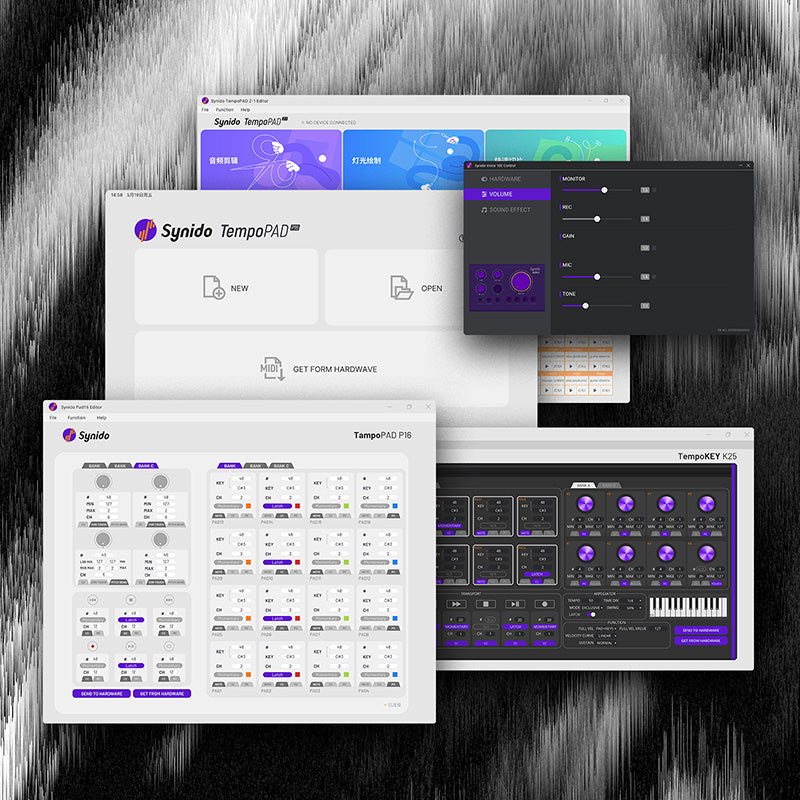
A: Download the Control Panel software for the Synido TempoKEY W25 Play from our website, then use the "KEY Select Sound" drop-down list to choose the keybed voice and "Drum Select Sound" to choose the pad drum kit. You can also do it on the device itself: press and hold the MAIN encoder, then press the KEY Sound or PAD Sound button to select the keybed voice or the drum kit.
#4
4. Q: With the Control Panel software open, why is there no sound from my computer when I hit the pads or play the keys?
A: The Synido TempoKEY W25 Play has its own sound module and speakers, so hitting the pads and playing the keys produces sound from the device itself. For that reason the Control Panel software does not play sound in sync with it. If you want sound from your computer, use the device with a DAW such as Ableton Live or FL Studio.
#5
5. Q: I have connected the device and opened my DAW, but there is no sound when I hit the pads or play the keys. Why?
A:
(1) Check that the pad/key MIDI channel set on the device matches the one set in the software.
(2) Check that the device and the software are connected successfully. (Note: the connection status is shown in the middle of the Control Panel window.)
(3) Restore the factory default settings, then reconnect and try again.
(4) Close and reopen the DAW, then try again.
#6
6. Q: How do I restore the default settings on the device?
A: Press the TEP TEMPO, SOUND ON/OFF and KEY SOUND buttons at the same time.
#7-9
7. Q: The Control Panel says the device is already in use when I open it (Windows only). What should I do?
A: Check whether another DAW is open and connected to the device. Quit that DAW, or any other program that is using this MIDI device, then unplug and reconnect the device - the Control Panel should then be able to connect.
8. Q: Why are the keys and pads quiet when I use a DAW on my phone or computer?
A: Some mobile and desktop DAW apps carry their own MIDI implementation, so each time you open one you need to turn the MAIN encoder clockwise to raise the output level. This encoder controls the volume in some of those apps, so turn it all the way up. You can then raise the volume further in the app itself if you need to.
9. Q: Why does nothing happen when I connect the device to some phones or tablets?
A: First check whether your phone has an OTG switch, and turn it on before connecting the device. Next, try removing the phone case. Finally, try flipping the OTG adapter around and plugging it into the USB-C port the other way. If it still does not work, the problem is most likely compatibility with that phone - ask the customer to try a different phone.
#10
10. Q: How do I map the transport buttons in my DAW (using Ableton Live as an example)?
A: Mapping the transport buttons
(1)Select the transport button at the top of the Ableton Live window, right-click it and choose "Edit MIDI Mapping" to enter the MIDI mapping screen, as shown below.
(2)Click the Play button in the DAW, then press the matching Play button on the device. If the icon now shows 5, the Play button has been mapped successfully, and the MIDI mapping table on the left will show the corresponding entry. Do the same for the Pause and Record buttons. (Note: the numbers shown in the DAW correspond to: Play - 5, Pause - 4, Record - 6.) The finished mapping looks like this:
(3)Once mapped, you can use the matching transport buttons on the device to control the DAW.


#11
11. Q: How do I use Scale mode in my DAW (using Ableton Live as an example)?
A: Steps
(1) In Ableton Live, select the instrument you want from the browser on the left and drag it onto a MIDI track on the right. The corresponding audio effects load in the panel below. Play a few keys to check that the instrument is producing sound, as shown below.
(2) Double-click an empty area of the MIDI track to open the Scale screen, then click the Scale button to turn the Scale function on. On the right, choose the "Root" note and the "Scale" type you want, as shown below. (Note: the root note and scale type on the device must match those selected in Ableton Live. See the user manual for how to set the root note and scale type on the device.)
(3) Once that is set up, you can use Scale mode in Ableton Live and view the scale information on the right.


#12
12. Q: How do I set the scale and root note on the device?
A: Press SCALE to turn Scale mode on, then press and hold the SCALE button and press any key to configure it. Different keys correspond to different functions; from left to right they run through the root note options and then the scale type options. Just follow the silkscreen labels on the device to select the scale and root note you want.
#13
13. Q: When connected to a DAW (Ableton Live, for example) with Smart Chord turned on, pressing keys repeatedly occasionally causes stuck notes or dropped notes in the DAW. Why?
A: This may be related to the specifications of some computers. If it happens, try a different computer.
#14
14. Q: I cannot connect the Synido TempoKEY W25 Play to DAW apps on my phone - Koala Sampler, Cubasis LE 3, FL Studio Mobile and so on - over wireless Bluetooth.
A: Mobile DAW apps usually have no system-level option for connecting BLE MIDI devices, so you need a third-party app to make the connection.
iOS users: connect the Synido TempoKEY W25 Play to the GarageBand app over Bluetooth and hit the pads to check that sound is produced. Once you have confirmed that it works, leave GarageBand running in the background (do not close it), then open the DAW app you want to use.
Android users: first install the "MIDI BLE Connect" app on your phone and connect the Synido TempoKEY W25 Play to MIDI BLE Connect over Bluetooth. Once connected, leave it running in the background (do not close it), then open the DAW app you want to use.
#15
15. Q: How do I connect the Synido TempoKEY W25 Play to my computer over Bluetooth?
A: First install the Synido Wireless Connect software (available for download from the Synido website). You can then connect to the device over Bluetooth through Synido Wireless Connect. Steps:
(1)First press the BT button on the device to turn Bluetooth on (the BT indicator lights up red when it is on).
(2)On your computer, open Synido Wireless Connect and click "Scan now" to search for devices.
(3)Click the device you want to connect to, and on the next screen click "Connect". The connection is then established and the BT indicator on the device turns blue.
(4)In your DAW (using Ableton Live as an example), open the MIDI input settings and select the Bluetooth input of our MIDI device. MIDI signals can then be sent to the DAW over Bluetooth.


#16
16. Q: How do I install and set up the Synido Wireless Connect Bluetooth utility and its driver?
A: Synido Wireless Connect lets you connect your computer to the device over Bluetooth and pass the MIDI signals from the device through to your DAW wirelessly, making it easier to compose and perform. To install it:
(1)Once Synido Wireless Connect is installed, open it and click "OK" to install the driver.
(2)Simply tick the two options shown in the image, then click "Install" to start the installation.
(3)When the driver installation is finished, click "Close" to close the window. From then on you can just open Synido Wireless Connect and connect to the device as usual.


#17-24
17. Q: I connected the Synido TempoKEY W25 Play to my computer over wireless BLE Bluetooth and turned on MIDI Clock Sync in both Ableton Live and on the W25, but it has no effect - playback still runs at the BPM set on the W25.
A: MIDI Clock signals cannot be transmitted over BLE Bluetooth. If you need tempo sync, please connect over USB.
18. Q: I connected my Synido TempoKEY W25 Play to my synthesizer, with the W25 as the output and the synth as the input. The connection is fine and MIDI Clock Sync is on, but the synth does not follow the BPM of the W25 Play.
A: The Synido TempoKEY W25 Play can only act as a slave device that receives MIDI Clock; it cannot act as a master device that sends MIDI Clock. When using MIDI Clock Sync, please set the W25 as the input device.
19. Q: How do I switch the endless encoders between Absolute (Abs) and Relative (Rel) mode on the Synido TempoKEY W25 Play?
A: You can switch the endless encoders between Absolute Value and Relative Value either on the device or in the Control Panel software, depending on what you need.
(1)On the device: press the MAIN encoder together with the endless encoder to enter the editing screen, then set Absolute Value or Relative Value.
(2)In the Control Panel software: use the control to the right of the endless encoder to set Absolute Value or Relative Value.
(3)Tips: Relative Value has three modes, Rel 1 - Rel 3. Choose the one that suits the DAW or hardware you are using.
A MIDI relative encoder is a hardware control (usually a knob) used to adjust parameters on music equipment, together with the way it is implemented in the MIDI protocol. Its defining characteristic is that it reports the amount of change (increment or decrement) rather than an absolute position.
To map a relative encoder, using Ableton Live as an example: set the encoder to one of the relative modes, Rel 1 - 3 (note that Ableton Live does not support Rel 3, only Rel 1 and Rel 2). After selecting the encoder you want to map, turn it slowly counter-clockwise, and Ableton Live will recognise the mapping automatically.
20. Q: How do I use the Sync function after connecting a synthesizer (using the YAMAHA reface DX as an example)?
A: The MIDI IN port on the device supports Sync. Connect the MIDI port of the synthesizer to the MIDI IN port of the device, turn on LOOPER and REC, and enable both Sync and ARP on the device - Sync will then work.
21. Q: Besides the indicator light, is there anywhere else I can check the charging status?
A: Yes. The battery icon in the top right corner of the main screen shows the current level: it appears when you power the device on or after 20 seconds of inactivity, and shows the charging icon while charging.
22. Q: How do I check the remaining battery level, and how long do charging and battery life take?
A:
(1) Look at the top right corner of the main screen: three bars means the battery is full, and the battery icon blinks when the level is low.
(2) A full charge takes roughly three and a half to four hours, and battery life is about five hours depending on how you use it.
23. Q: Can I connect a traditional MIDI device to the Synido TempoKEY W25 Play and use it as the sound source?
A: Yes. The Synido TempoKEY W25 Play supports the standard MIDI protocol. Using the included 5-pin DIN to 3.5 mm MIDI cable, connect the hardware MIDI Out port of your other MIDI device to the MIDI In port of the Scale Pocket. You can then play the other MIDI device and hear its sound through the Synido TempoKEY W25 Play.
24. Q: The device has entered forced update mode and does not respond when I power it on or off. How do I get it working again?
A:
(1)The device may have entered forced update mode through an accidental operation during use (this also happens if the connection is dropped during an update). The device then looks like the image below. To fix it:
(2)Open the "Synido TempoKEY W25 Play" Control Panel software, choose Help - About from the menu bar, then select "Firmware Update" from the drop-down list and click "Start the update" to run the firmware update.
(3)The device now enters firmware update mode and a progress bar appears (note: do not operate the device or the Control Panel during the update, or the update may fail):
(4)Wait for the update to be written to the device. When it is finished, "Upgrade success" is displayed and the device restarts and returns to normal, which means the firmware update succeeded. Note: if the progress bar stays stuck, the update failed to write - restart the device and repeat the steps above.