

Synido TempoKEY K32 Play FAQs
Find the product using solutions here
If you have any other questions, you can contact us to get technical support help from our engineer
Contact email: cs@synido.com
Note: The below issue only applies to version V1.0.0. The subsequent V1.0.1 version has optimized this issue. If you accidentally enter upgrade mode, you can exit by toggling the switch to restart the device.
#1
1. Q: Why is there no sound when I hit the pads or keys on my Synido TempoKEY K32 Play?
A: Typically, a MIDI controller does not generate sound on its own—it only sends MIDI signals. However, the Synido TempoKEY K32 Play features a built-in sound engine and speaker. Press the Sound on/off button; when the backlight turns on, the sound engine is activated, and you will hear sound when hitting the pads or keys.
#2
2. Q: Can I connect the Synido TempoKEY K32 Play to an external speaker or audio interface?
A: The Synido TempoKEY K32 Play has a built-in speaker for audio output. To connect it to an audio interface or external speaker, use a 3.5mm cable connected to the device's headphone output jack. This will send audio to your speaker or interface.
#3
3. Q: How do I select different key sounds and pad drum kits on the Synido TempoKEY K32 Play?
A: You can use the dedicated control panel available for download on our official website. In the panel, select a key sound from the KEY sound Select dropdown menu, and a drum kit from the Drum Sound Select menu. Alternatively, on the device itself, long-press the main control knob, then press the KEY Sound and Drum Sound buttons to cycle through options (128 key sounds and 10 drum kits available).
#4
4. Q: Why is there no sound from my computer when I hit the pads or keys while the control panel is open?
A: The Synido TempoKEY K32 Play has a built-in sound engine and speaker, so audio is played directly from the device when you hit the pads or keys. The control panel does not provide real-time audio playback.
#5
5.Q: The control panel shows a "Device Occupied" error. (Windows only; macOS allows simultaneous control without this error.)
A: Check if any other DAW software is open. You will need to close any DAW or other program currently using the MIDI device, then unplug and reconnect the device.
#6
6. Q: The keys/pads sound low when I open a DAW on my mobile device or computer.
A: When connected to some DAW software that implements MIDI protocol, you may need to turn the main knob clockwise to 127 each time you open the software. The main knob controls the volume in some applications. Also, ensure the volume is turned up within your computer or mobile device's DAW settings.
#7
7. Q: No response when connecting to some phones/tablets.
A: First, check if your phone has an OTG switch and enable it before connecting. Remove any phone case. Try plugging the USB-C OTG adapter in both orientations. If the issue persists, it may be a compatibility issue; test with another phone if possible.
#8
8. Q: How do I map the transport buttons in a DAW (using Ableton Live as an example)?
A: To map transport buttons:
(1) In Ableton Live, right-click a transport button (e.g., Play), select Edit MIDI Map to enter MIDI mapping mode.
(2) Click the DAW's Play button, then press the corresponding Play button on the device. A number (e.g., 5) will appear, indicating a successful map. Repeat for Stop and Record (Note: Typical DAW numbers: Play=5, Stop=4, Record=6).
(3) Once mapped, you can control DAW transport using the device's transport buttons.


#9
9. Q: When connected to a DAW (e.g., Ableton Live) with Smart Chord mode on, repeatedly pressing a key causes occasional stuck notes or dropped notes.
A: This may be related to your computer's performance. Try testing with a different computer to see if the issue persists.
#10
10. Q: I cannot connect my Synido TempoKEY K32 Play via Bluetooth to mobile DAWs like Koala Sampler, Cubasis LE 3, or FL Studio Mobile.
A: Mobile DAWs generally do not have built-in BLE MIDI connection options. You will need a third-party bridge app:
iOS users: Connect the K32 Play via Bluetooth to GarageBand. Test by hitting a pad—if you hear sound, keep GarageBand running in the background (do not close it), then open your target DAW.
Android users: Download and install MIDI BLE Connect. Connect the K32 Play to MIDI BLE Connect via Bluetooth, leave it running in the background, then open your target DAW.

#11
11. Q: How do I connect the Synido TempoKEY K32 Play to my computer via Bluetooth?
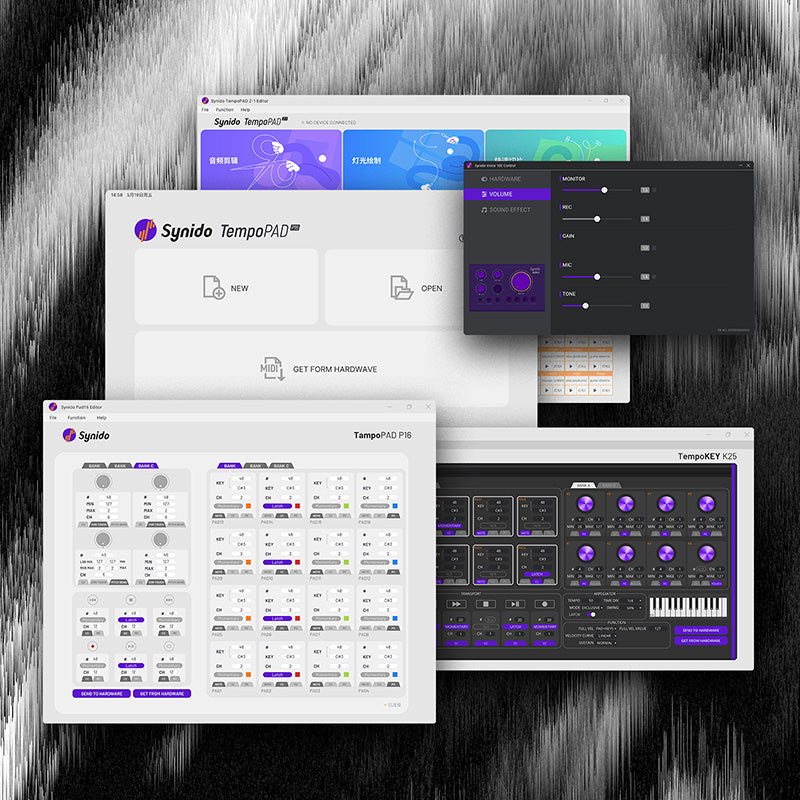
A: A dedicated Bluetooth connection tool called Synido Wireless Connect is available for both Windows and macOS. Power on your Synido TempoKEY K32 Play, then open the tool and click the search for devices button. Once the desired device appears in the list, click on it to view device details, then click the connect device button to establish the Bluetooth connectio
#12
12. Q: How do I enable MIDI Clock SYNC on the Synido TempoKEY K32 Play?
A: First, turn on the ARP function. Then hold the ARP button and press the black key labeled SYNC to enable MIDI Clock SYNC.
#13
13. Q: I connected the K32 Play to my computer via BLE Bluetooth and enabled MIDI Clock SYNC in both Ableton Live and the K32, but it does not work. The BPM still runs at the K32’s set speed.
A: MIDI Clock signals cannot be transmitted via BLE Bluetooth. For tempo sync, please connect using a wired USB connection.
#14
14. Q: I connected the K32 Play to my synthesizer with the K32 Play as output and the synth as input. Connections are correct and MIDI Clock SYNC is on, but the synth does not follow the K32’s BPM.
A: The Synido TempoKEY K32 Play can only act as a slave device to receive MIDI Clock; it cannot send MIDI Clock as a master device. When using MIDI Clock SYNC, set the K32 Play as the signal receiver.
#15
15. Q: How do I use the SYNC function with a synthesizer? (Example: YAMAHA reface DX)
A: The K32 Play’s MIDI IN port supports SYNC. Connect the synth’s MIDI OUT to the K32 Play’s MIDI IN. Enable LOOPERA, REC, SYNC, and ARP on the K32 Play to activate tempo sync.
#16
16. Q: How can I check the remaining battery level? What are the charging and working times?
A: The TempoKEY K32 Play does not support real-time battery level display, but a Low Power!!! alert will appear on the screen when battery is low.
B: Typical charging time: 3.5–4 hours. Typical working time: approx. 6 hours (varies by usage).
#17
17. Q: How do I install and set up the Synido Wireless Connect Bluetooth driver?
A: Synido Wireless Connect lets you connect the device to your computer via Bluetooth and route MIDI signals to your DAW for playing and production. Installation steps:
(1) Install and launch Synido Wireless Connect, then click OK to install the driver.
(2) Check only the two options shown, then click Install.
(3) When installation finishes, click Close. You may now open Synido Wireless Connect and connect your device normally.

0

1.1

1.2
#18
18. Q: How do I pair the Synido TempoKEY K32 Play with Synido Wireless Connect?
A:
(1) Press the BT button on the K32 Play to turn on Bluetooth (BT LED lights red).
(2) Open Synido Wireless Connect on your computer and click Scan Now.
(3) Select your device and click Connect. The BT LED will turn blue when successfully connected.
(4) In your DAW (e.g., Ableton Live), set the MIDI input to the K32 Play Bluetooth input to send MIDI signals over Bluetooth.
#19-21
19. Q: Why is the sound of PAD7 in Bank A quiet?
A: By default, PAD7 is assigned to Closed Hi-Hat. It is normal for Closed Hi-Hat to be quieter than other drum sounds due to its natural timbre characteristics.
20. Q: Why don’t the transport buttons respond when pressed?
A: Transport buttons send CC commands by default. You must manually switch them to MMC mode to control DAW transport. For Logic Pro: set the K32 Play transport buttons to MMC, then enable MMC input monitoring in the DAW.
21. Q: When using the internal sound engine, why do knobs K1–K8 have no effect?
A: K1–K8 are assignable knobs with no default internal effect; they are designed for mapping parameters in your DAW. However, you can reassign their MIDI CC numbers using the CC list in the user manual. Once programmed, the knobs will control internal sound parameters as intended.